Notion Integration
Track time on Notion pages with the page title automatically captured in your Harvest timer.
How to Use
- Open any Notion page
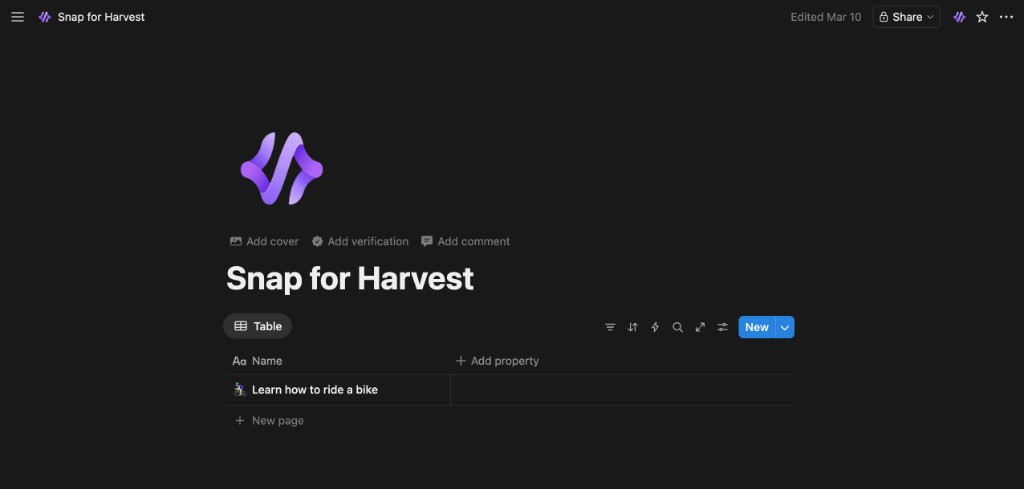
- Look for the Snap for Harvest button in the toolbar (next to the Share button)
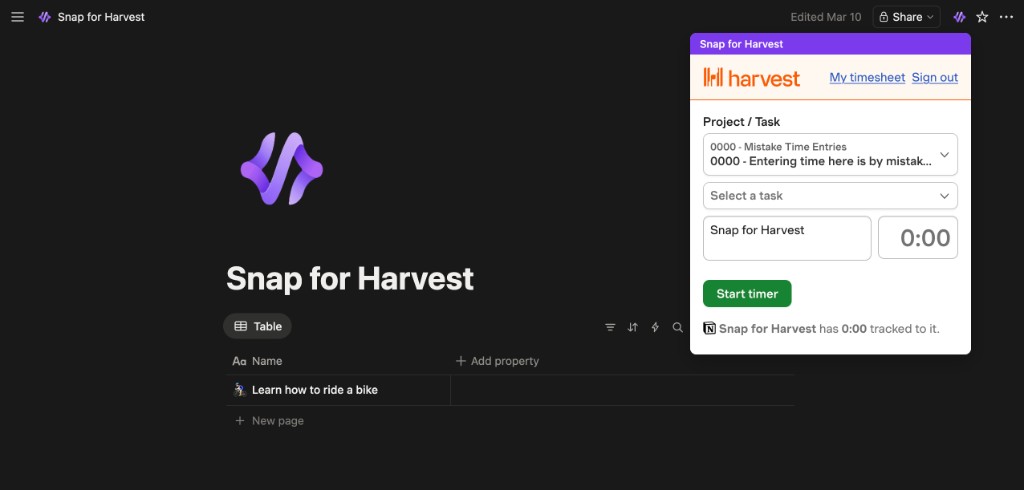
- Click the Snap for Harvest button to open the timer
- The current page title will be automatically pre-filled in the Notes field
- Select your project and task
- Click Start Timer
Features
Automatic Page Title Capture
The extension automatically captures the Notion page title and pre-fills it in your Harvest timer. No manual entry needed!
Works Everywhere in Notion
- Regular pages: Documents, notes, wikis
- Databases: Tables, boards, calendars, galleries
- Peek/Preview mode: When viewing pages in a modal
- Full-page view: When pages are open in full screen
Dynamic Context Updates
When you navigate to a different Notion page, the timer updates with the new page title automatically.
Tips & Best Practices
Button Location
The Snap for Harvest button appears in the Notion toolbar, right next to the Share button. It's always visible regardless of which page you're on.
Enable/Disable Integration
To toggle the Notion integration:
- Click the extension icon → Options
- Go to Default Sites tab
- Toggle Notion on or off
📹 Video guide coming soon — We're creating a video walkthrough to show you exactly how to track time on Notion.
Common Questions
Why isn't the button appearing?
Make sure the Notion integration is enabled in Options → Default Sites, and refresh your Notion page.
Does this work with Notion databases?
Yes! The button works on all Notion content types including databases, wikis, and regular pages.
Can I track time on shared Notion pages?
Yes, as long as you have access to view the page, you can track time on it.