Google Calendar Integration
Track time directly from your calendar events without switching tabs. The meeting name is automatically pre-filled in your Harvest timer.
How to Use
Follow these steps to track time from a Google Calendar event:
- Open Google Calendar
- Click on any calendar event to open the event details
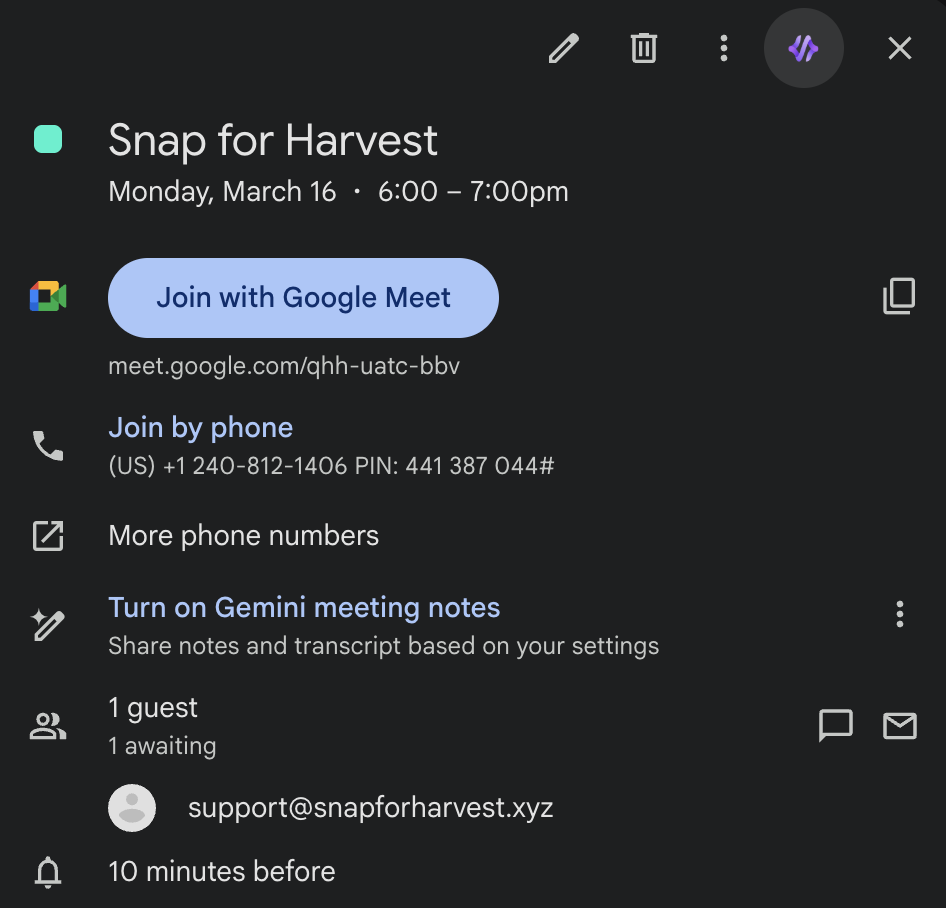
- Look for the Snap for Harvest button in the event dialog header (next to the edit and delete icons)
- Click the Snap for Harvest button to open the timer panel
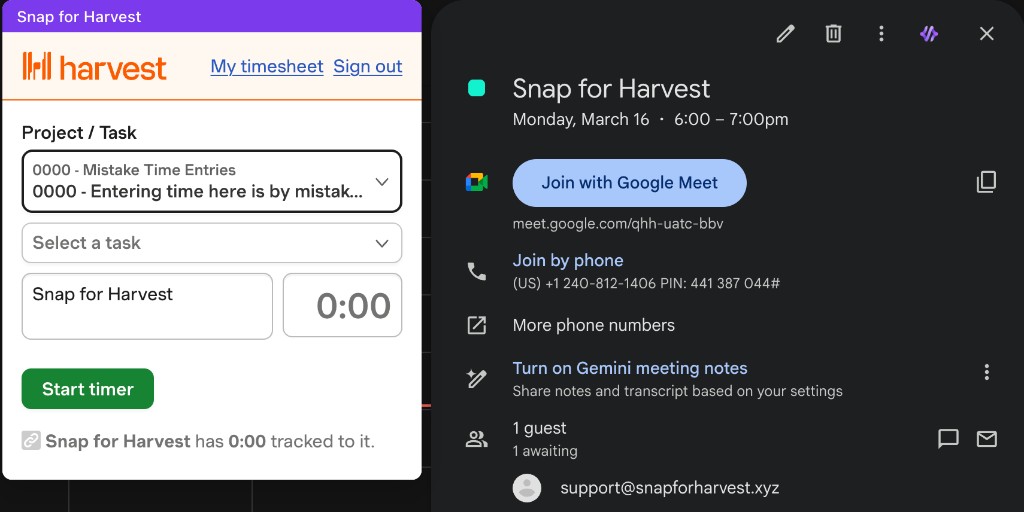
- The meeting name will be automatically pre-filled in the Notes field
- Select your project and task from the dropdowns
- Click Start Timer to begin tracking time
Features
Automatic Event Title Capture
When you click the Snap for Harvest button, the event title is automatically captured and pre-filled in the Harvest timer's Notes field. No manual typing required!
Dynamic Side Panel
The Harvest timer opens as a side panel next to your event dialog, keeping your calendar visible while you track time. The panel automatically positions itself to avoid covering important content.
Works with All Event Types
- Standard events: Regular calendar appointments
- All-day events: Full-day meetings and reminders
- Recurring events: Weekly meetings, daily standups, etc.
- Shared calendars: Events from team calendars
Tips & Best Practices
Quick Close
To close the timer panel, you can:
- Click the Snap for Harvest button again
- Click anywhere outside the panel
- Close the event dialog
Switching Between Events
When you open multiple events, each one gets its own timer context. The correct event title is captured for whichever event you're viewing.
Enable/Disable Integration
If you want to temporarily disable the Google Calendar integration:
- Click the extension icon in your toolbar
- Go to Options
- Navigate to the Default Sites tab
- Toggle off Google Calendar
📹 Video guide coming soon — We're creating a video walkthrough to show you exactly how to track time from Google Calendar.
Common Questions
Why isn't the Snap for Harvest button appearing?
Make sure:
- The extension is installed and enabled
- You're signed into your Harvest account
- The Google Calendar integration is enabled in Options
- You've refreshed the calendar page after installation
Can I track time for past events?
Yes! You can open any past calendar event and track time for it. The timer will start now, but you can adjust the time entry in Harvest afterward.
Does this work with Google Meet links?
Yes, the integration works with any calendar event, including those with Google Meet links attached.